|
|
|
| |
| |
| |
You need a clean one-page menu or price sheet, and you fight a design tool or wait on someone else. One small change, and you start over. |
ChatGPT Image 2.5 just launched, and it finally gets the text right & fixes one part without wrecking the rest. |
Watch the full test here 👇 |
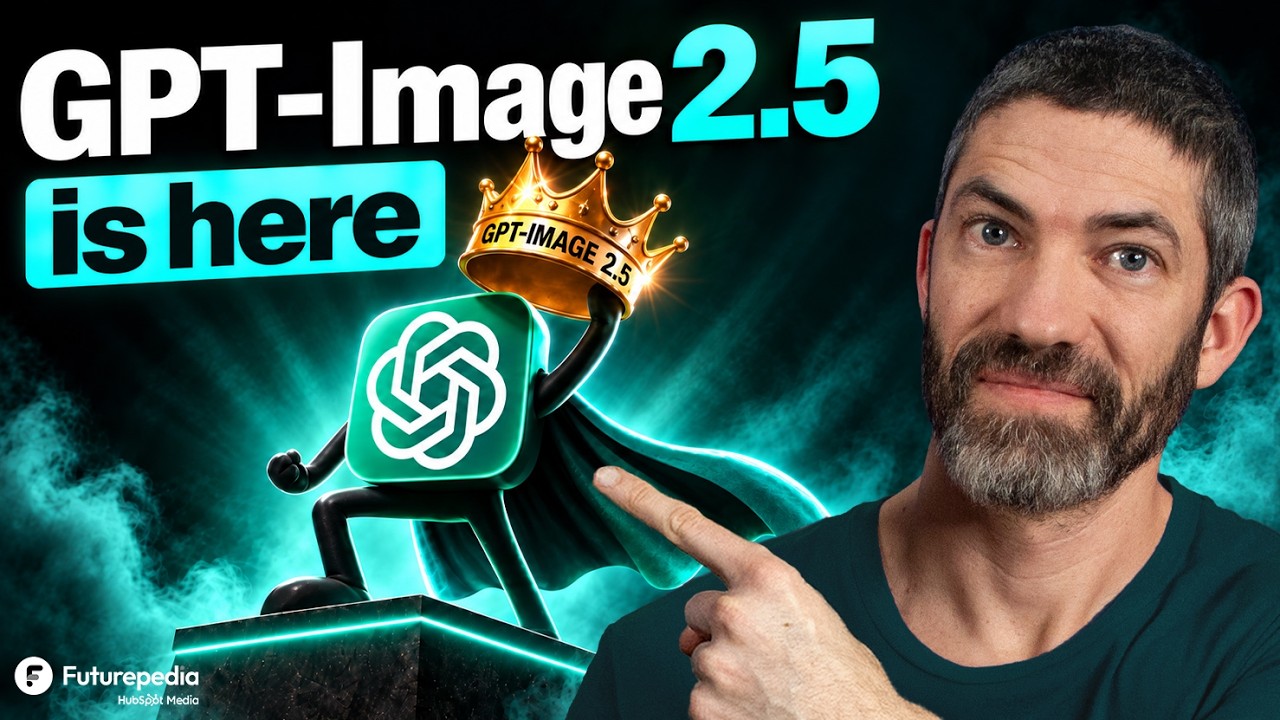 |
ChatGPT Image 2.5 Is The New King (Fully Tested) |
|
|
|
|
|
|
|
| |
|
| |
| |
| |
How We Used ChatGPT Image 2.5 To Turn a Price List Into a Menu Customers Can Read |
A bakery owner pastes in their fall items & prices, asks for a printable menu board, and gets a clean, accurate one-pager in a couple of minutes, no designer needed. |
|
|
Get Readable, Accurate Text In Your Images, Not Gibberish |
This is the first image model that packs in a lot of text & keeps it correct, so real one-page designs finally work. |
✅ Writes clean, correct text, even a full menu or price list |
✅ Researches the facts first when you ask, so the details stay right |
✅ Edits one part without changing everything else around it |
✅ Removes the background for a clean logo or product cutout |
✅ Keeps your colors & style steady across versions |
|
|
How We Did It |
Here's the full flow, using a bakery menu as the example. The same steps work for almost any one-page graphic. Think of ChatGPT Image 2.5 as a fast designer: it handles the layout & the text, while you give it the details & make the final call. If you can describe what you want, you can do this. |
1. Open ChatGPT & start a new image |
ChatGPT Image 2.5 rolled out to all users. Open the Images section in the left sidebar, or just type in a normal chat, either one works. Two models run behind it, Flare (the fast one) & Sunburst (the detailed one), and ChatGPT picks the right one for you, so there is nothing to set up. |
|
|
2. Write a detailed prompt & paste in your real details |
Describe exactly what you want, then drop in your actual items & prices, e.g., 'Create a printable fall menu board for a bakery in a warm, cozy style, grouped into drinks, pastries & seasonal specials'. The more you give it, the less it guesses, so paste your real list instead of leaving blanks. |
|
|
3. Let it research first when the facts matter |
For anything that needs to be current or correct, ask it to look things up before it draws, e.g., 'research popular fall flavors this year & suggest three seasonal specials'. It checks real sources first, then builds the image, so you get accurate, up-to-date text instead of made-up filler. This adds a minute or two, but it is worth the wait. |
|
|
|
|
|
| |
|
| |
| |
| |
💫 Level Up |
More Leads. More Deals. Happier Customers. |
|
|
HubSpot is an agentic customer platform built around your brand, your customers & your history, so every tool you use reflects the business you're running. |
Key Takeaways |
Build demand: customers using HubSpot Breeze Assistant generate 2.2x more leads on average Win deals: customers using HubSpot Breeze Assistant close 2.6x more deals on average Delight customers: customers using HubSpot Customer Agent close 74% more tickets on average
|
These aren't projections. They're what customers are already seeing. |
|
|
|
|
|
|
|
|
| |
|
| |
| |
| |
4. Refine by describing the change, not redrawing |
When something is off, tell it in plain words, e.g., 'make the prices bigger & move seasonal specials to the bottom'. This version keeps the rest of the menu the same instead of rebuilding from scratch, which is the real upgrade. That alone saves the do-over loop older models put you through. |
|
|
5. Clean it up & size it to fit |
Change the aspect ratio with one click to match a print sheet or a screen. Want just your logo or a single product with no background behind it? Ask it to remove the background, and it gives you a clean cutout, even on tricky edges like a glow or thin lines. |
|
|
6. Read every line, then download |
It is fast but not perfect, so check the text closely before you share. Fix anything with one more plain request, then download the full-size file. Now you have a menu you can print or post in minutes, and update yourself the next time prices change, no designer and no waiting. |
|
|
Other Use Cases |
This same describe-and-refine flow goes way beyond a menu. Anywhere you need a clean, accurate one-pager, ChatGPT Image 2.5 can save you the design round-trip: |
📣 Marketing: turn an offer or event into a promo graphic with the dates & details right |
🤝 Sales: build a one-page plan or pricing sheet a prospect can read at a glance |
📊 Operations: lay out a simple process or safety poster the whole team can follow |
🎓 Course creators: design a clean lesson handout or infographic from your notes |
🧾 Finance: turn a dry report into a one-page chart of the numbers that matter |
|
|
|
|
|
| |
|
| |
| |
| |
💡 Bonus Pro Tips |
Describe changes instead of using the comment tool: typing the change in plain words lands more reliably than drawing a comment on the image, which sometimes edits the wrong spot |
Double-check the tiny stuff: clocks, small numbers & very busy backgrounds still trip it up, so read anything exact closely before you share |
Save your best prompt as a template: once one comes out right, keep that prompt & swap in new details next time, which is where the real time savings stack up |
|
|
|
|
|
| |
|
| |
| |
| |
⏭️ What's Next |
Catch us next Tuesday for another workflow you can put to work the same day. |
Want to get sharper with these tools? The free course bundle from Skill Leap is a fast place to start. |
|
|
|
|
|
| |
|
|
|
|


No hay comentarios:
Publicar un comentario