| | | | | | You're ready to launch a new campaign, but finding the perfect image slows you down every time. Stock photos never quite fit your brand, and commissioning custom art eats up your budget and timeline. Meanwhile, competitors are grabbing attention with striking, on-brand visuals. | Now, you can generate unique, tailored images right inside Canva—no design degree or outside help required. Let's see how Magic Media transforms your creative process, so you can ship eye-catching content faster than ever. |
| |
| | |
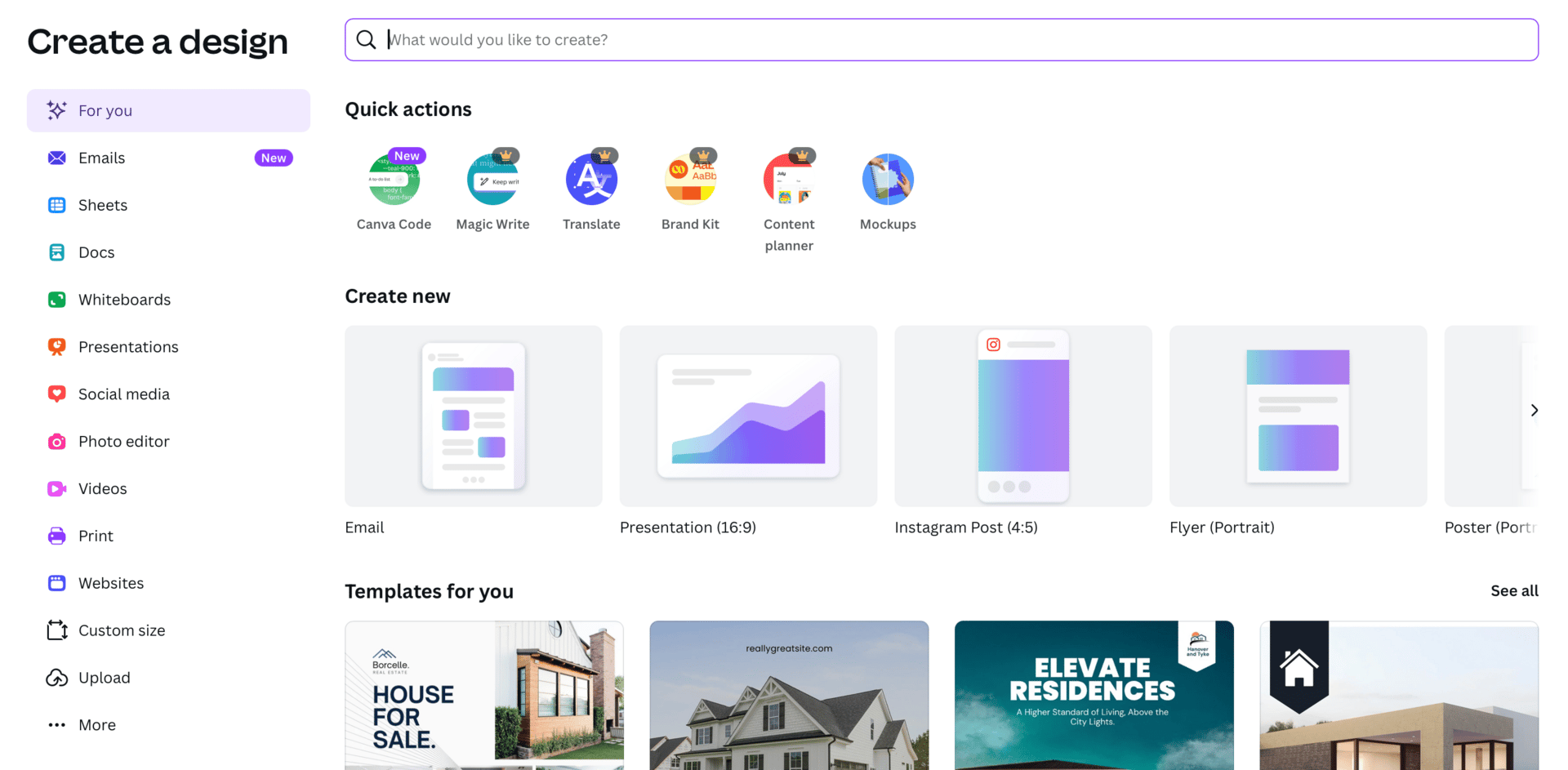
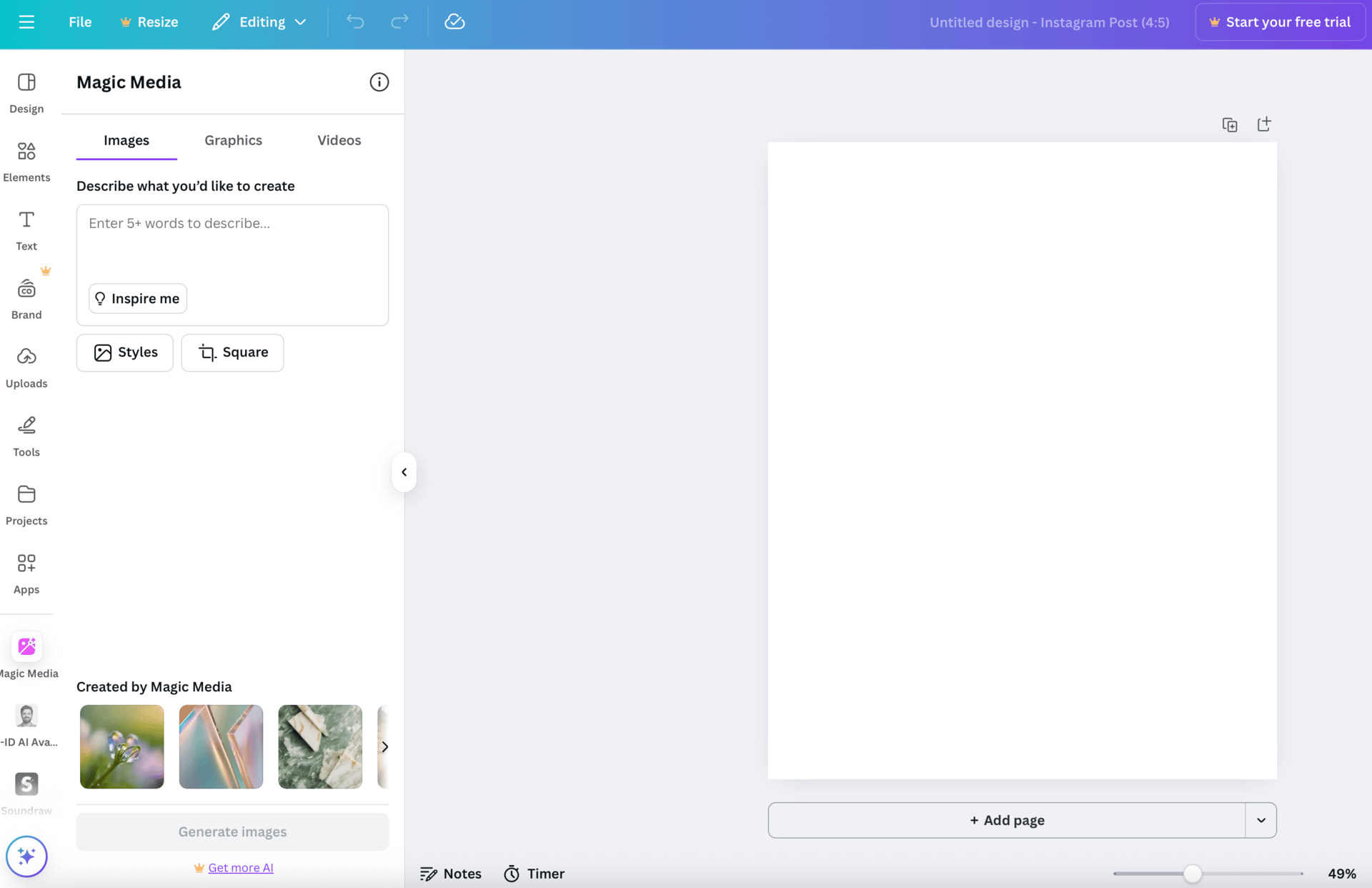
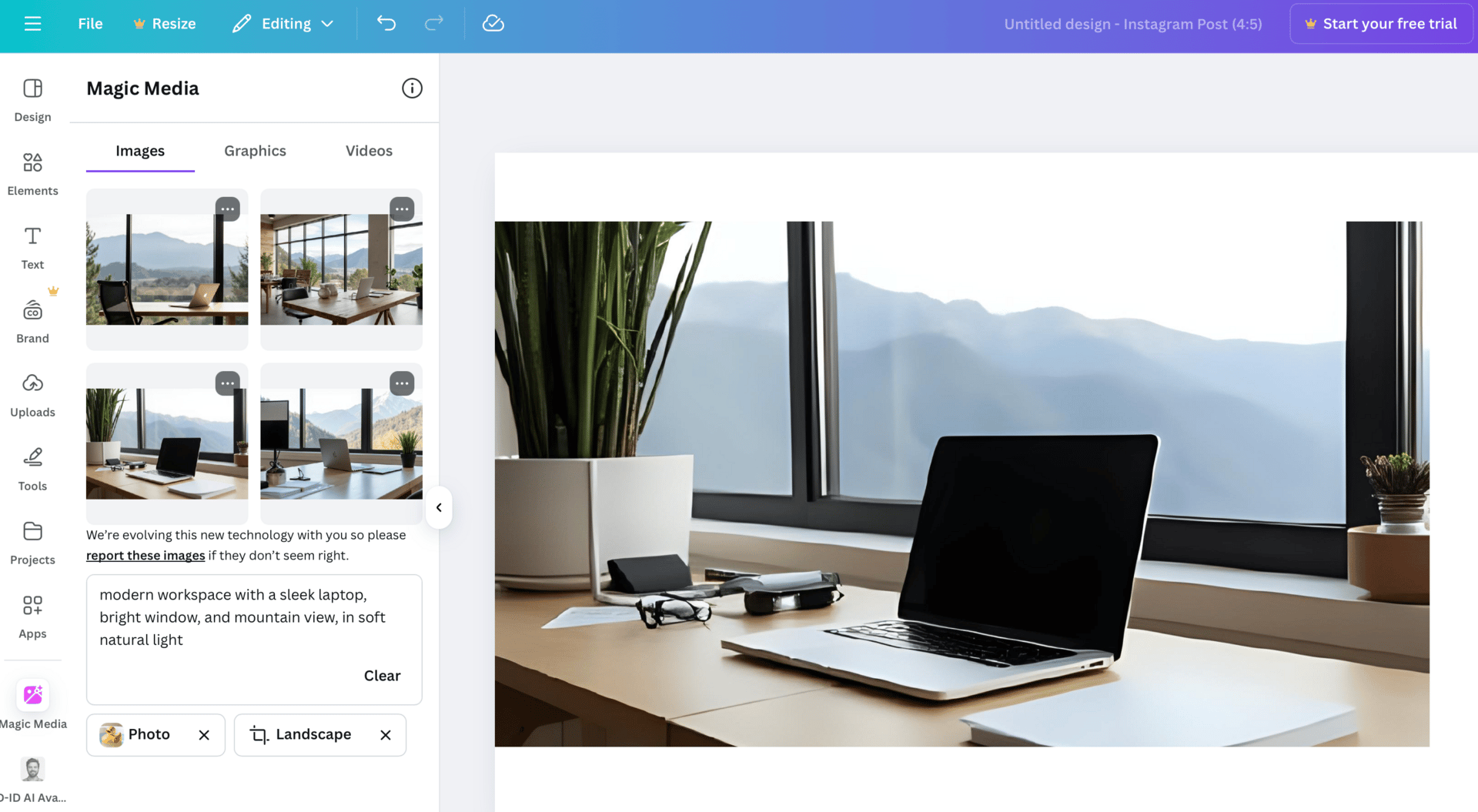
| | | | | How We Used Magic Media to Generate On-Brand Images for a Product Launch | We stepped into the shoes of a solo founder preparing a launch campaign for a new productivity app. Instead of scouring stock photo sites, we used Canva's Magic Media to instantly create custom hero images that matched our brand's vibe—directly in our project workspace. | | Why Magic Media Works | ✅ Generates custom visuals from detailed prompts—no need for outside designers or asset libraries | ✅ Offers multiple styles (Photorealistic, Moody, Neon, Anime, Watercolor, and more) to match your brand's look | ✅ Produces four unique options per prompt—choose your favorite or iterate instantly | ✅ Saves hours on image sourcing & revision cycles | ✅ Fully integrated with Canva projects—drag, drop, and edit without ever leaving your design | | How We Generated Images in Minutes Using Magic Media | Here's how we used Magic Media to create compelling visuals for our campaign landing page—perfect for entrepreneurs and small teams who need speed and quality. | 1. Start a New Canva Project | We logged in at Canva.com and clicked "Create a Design" to start a new canvas sized for our landing page hero section. This kept everything organized from the start. | | 2. Access Magic Media's AI Image Generator | From the left sidebar, we clicked "Elements," scrolled to "AI image generator," and chose "Create your own." (If it wasn't visible, we searched for "Magic Media" under "Apps" in the same sidebar.) | | 3. Craft a Detailed Prompt | Inside Magic Media, we selected the "Images" tab. | We entered a specific description: | 'modern workspace with a sleek laptop, bright window, and mountain view, in soft natural light' | The prompt's clarity set us up for better results. |
| |
| | |
| | | | | 💫 Level Up | Unleash Your Visual Creativity with Skill Leap's Canva Magic Media Course | | Ready to create on-brand images, graphics, and videos in minutes? Our Canva Magic Studio: Mastering AI-Driven Design course walks you through: | Writing winning prompts for better image results Choosing the right style for your brand Integrating AI images into any Canva project Using Magic Media for social, web, product, and more Managing credits and project workflows efficiently
| Go from beginner to power user and never run out of fresh visuals again. | |
| |
| | |
| | | | | 4. Pick the Right Style & Aspect Ratio | To match our brand, we chose the "Photorealistic" style and set the aspect ratio to wide (16:9)—ideal for a website hero image. | You can pick whatever fits your layout: square for social, portrait for stories, etc. |
| 5. Generate & Review Image Options | We clicked "Generate Image" and, in seconds, had four distinct images to choose from. We picked the one with the best composition for our needs. | If nothing hit the mark, we could tweak the prompt or use "Generate More Like This" for new options. | | 6. Add to Canvas & Refine the Design | Our chosen image dropped straight onto the canvas. We adjusted its size and position, then layered in headline text and a branded color overlay to finish the look—no extra uploads or downloads required. |
| 7. Download & Deploy | Once satisfied, we downloaded the final design, ready to use on our campaign site, social media, and email headers. | The whole process took less than 10 minutes—saving hours compared to traditional image sourcing. | | Other Ways to Use This | Magic Media isn't just for product launches. Custom AI images can fast-track creative work across your business. Try it for: | 👩🎤 Social Media Managers: Instantly make scroll-stopping visuals for posts, stories, and ads | 🎥 Content Creators: Generate unique blog, YouTube, or podcast thumbnails that stand out | 🛒 Ecommerce Sellers: Create branded product mockups or lifestyle scenes without a photo shoot | 🏅 Consultants & Coaches: Build polished slide decks with on-theme imagery for every client | 🎪 Event Organizers: Design custom invitations, banners, and event graphics in minutes | |
| |
| | |
| | | | | | Get your AI tool, agency, or service in front of 280k+ AI enthusiasts 🤝 | |
|
|
| |
| | |
| | | | | 💡Bonus Pro Tips | Get Specific With Prompts: The more details you provide (setting, mood, colors), the better Magic Media's results. Try 'evening city skyline with neon reflections, in anime style' to get exactly what you want | Explore All Styles: Don't stick to "Photo" by default. Test Watercolor, Moody, or Neon for campaigns that need a fresh feel—or to quickly A/B test visual directions | Keep Track of Credits: Magic Media uses monthly credits based on your Canva plan. Plan your image batches or test prompts before a big campaign to avoid running out mid-project. |
| |
| | |
| | | | | ⏭️ What's Next | We've mastered fast visuals — now it's time to see what's reshaping how we create them. | Catch Thursday's news roundup for what's new in AI, then next week's how-to for how to put it to work. |
| |
| | |
| |
|




No hay comentarios:
Publicar un comentario